Cross-Device Use
Transform images anytime, anywhere—online in your browser on desktop, tablet, or mobile.
Just upload, describe, and transform. Try OC Maker turns your images into fresh, polished visuals—no manual editing, no hassle. Try Seedream 5.0 Pro, Nano Banana Pro, Flux 2 Pro, GPT Image 2, and more models for limitless creativity.
Your latest creations, grouped by local date.
Transform images anytime, anywhere—online in your browser on desktop, tablet, or mobile.
Edit images quickly and easily, with every change guided by a simple text prompt.
Transform and download your images without complicated editing tools, allowing anyone to create polished results with ease.
Try OC Maker’s image-to-image AI lets you choose from multiple AI models, saving time and making it easier to compare ideas.
Generate detailed images with natural lighting, balanced colors, and cohesive backgrounds, just like a professionally edited image.
Create realistic photos, anime artwork, 3D cartoons, or painted illustrations suitable for social media, design projects, and creative work.
Make small edits or give any image a new look. Change styles, replace backgrounds, develop sketches, or place products in new scenes. Choose your model, resolution, and aspect ratio, then generate.
Try OC Maker’s image-to-image AI helps you do more with the images you already have. Change their style or content, combine details from multiple reference images, and expand or reframe them for different layouts and aspect ratios.
 After
After 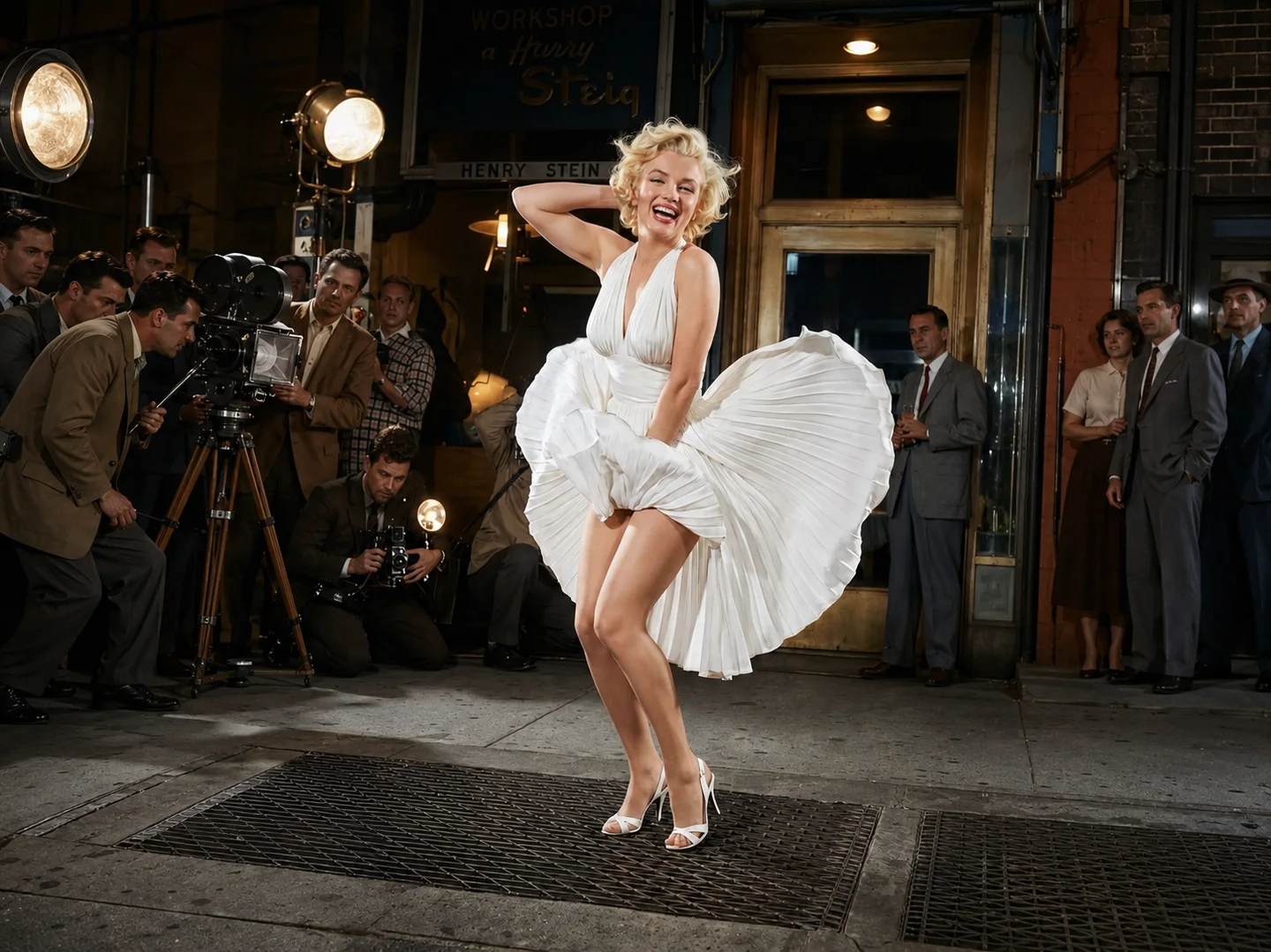 Before
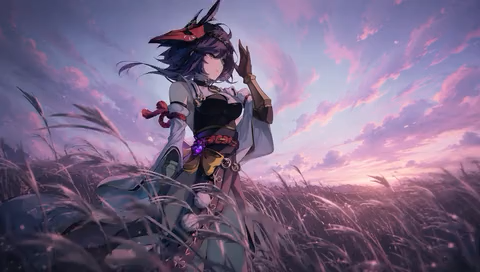
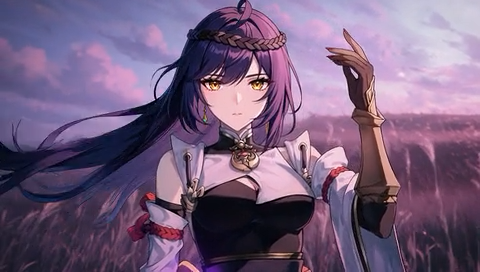
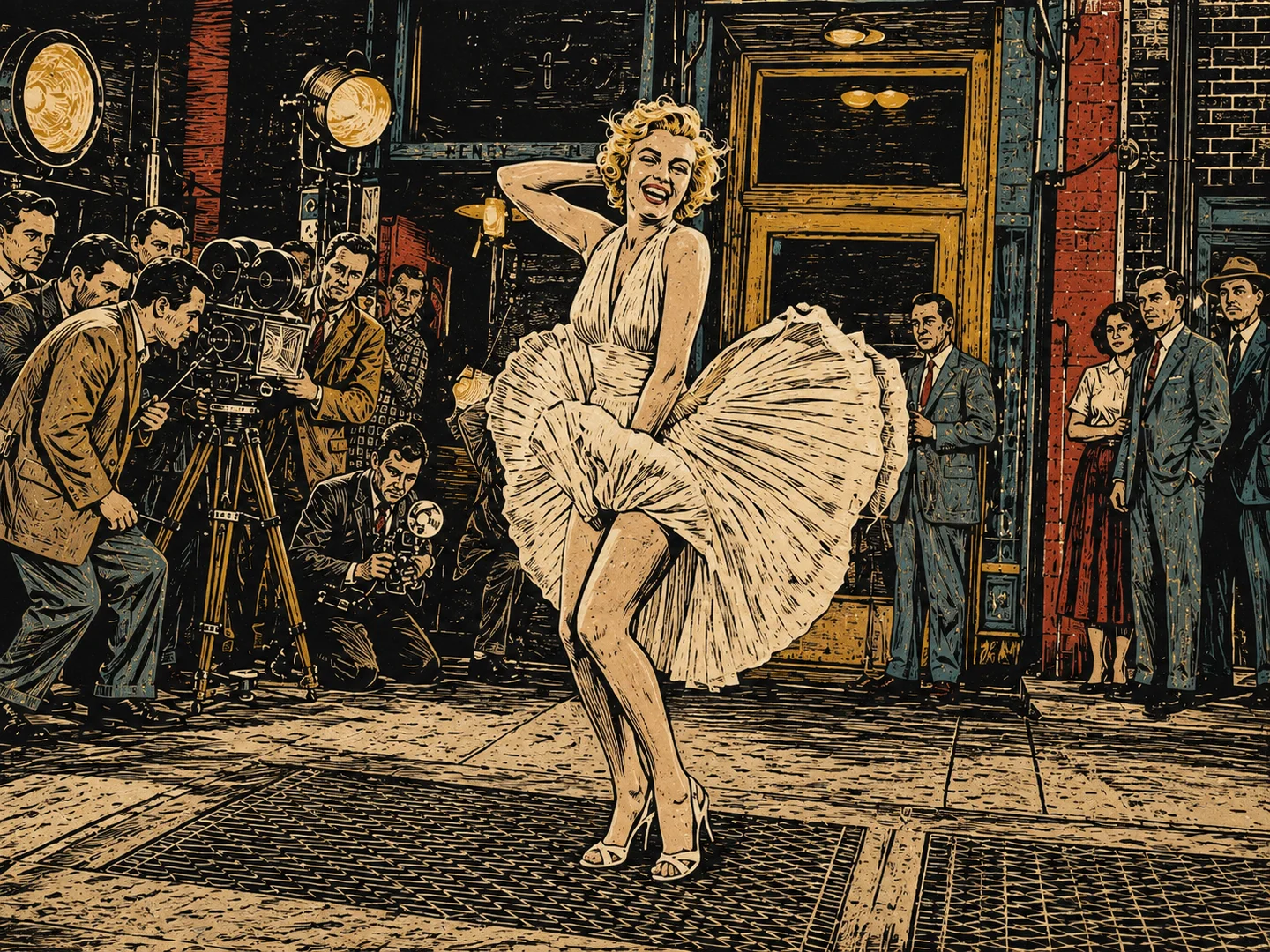
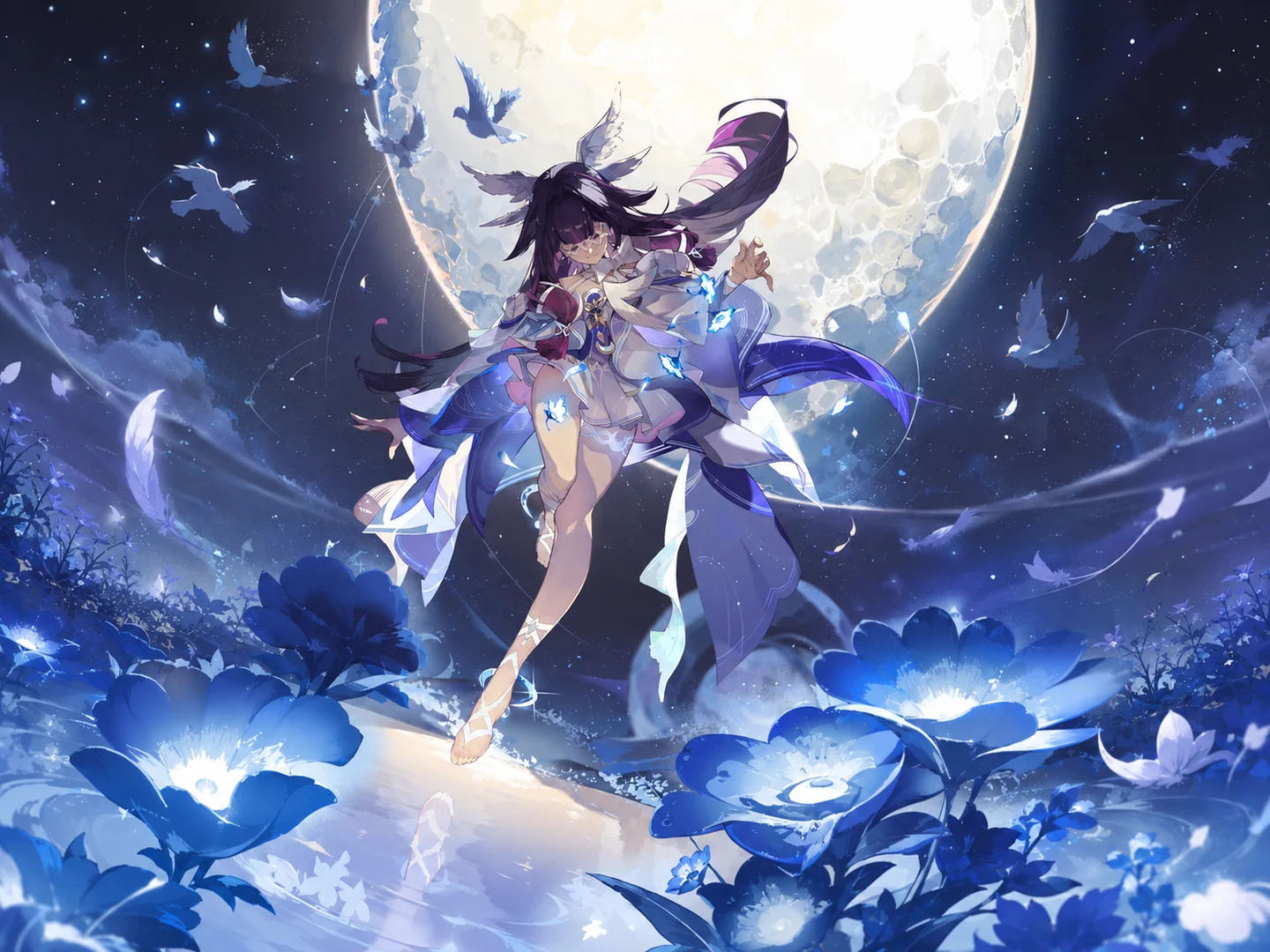
Give photos, selfies, sketches, or 3D renders a completely new look with Try OC Maker’s image-to-image AI. Turn a portrait into anime, a selfie into a cartoon avatar, a sketch into polished digital art, or a photo into watercolor, oil painting, or pixel art. Each result reflects the lines, colors, textures, lighting, and other details that make the chosen style distinct.
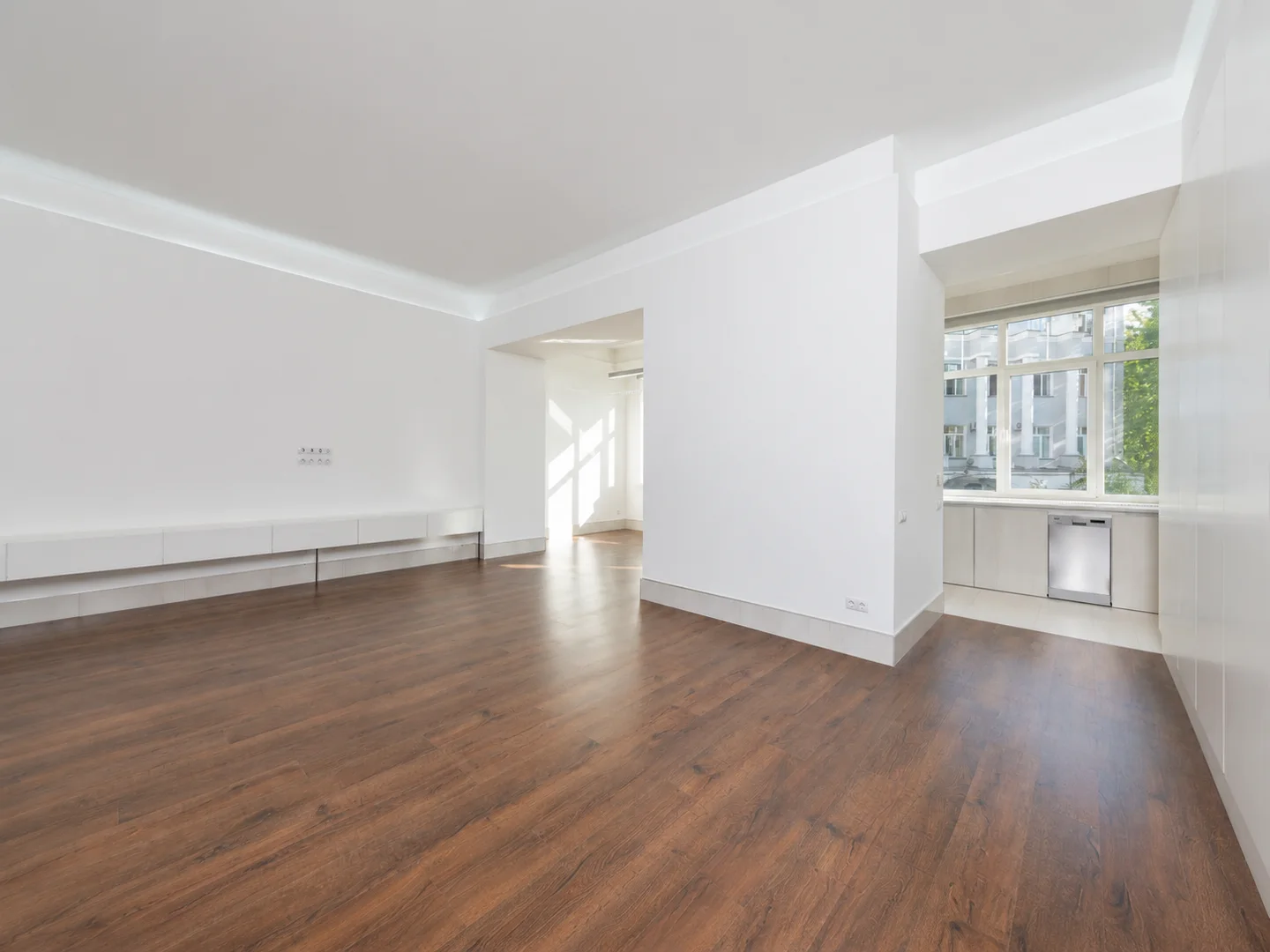 Reference Image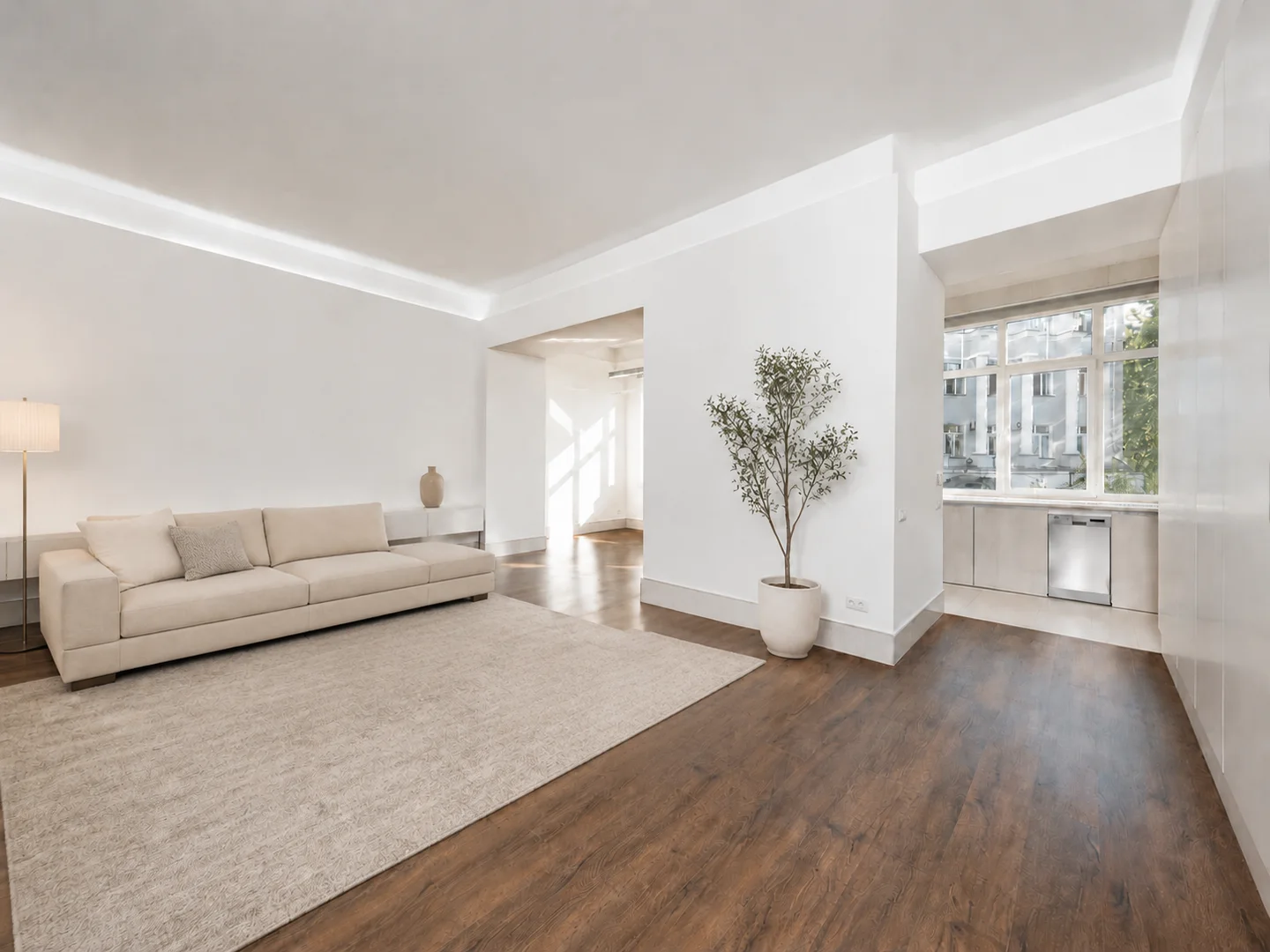
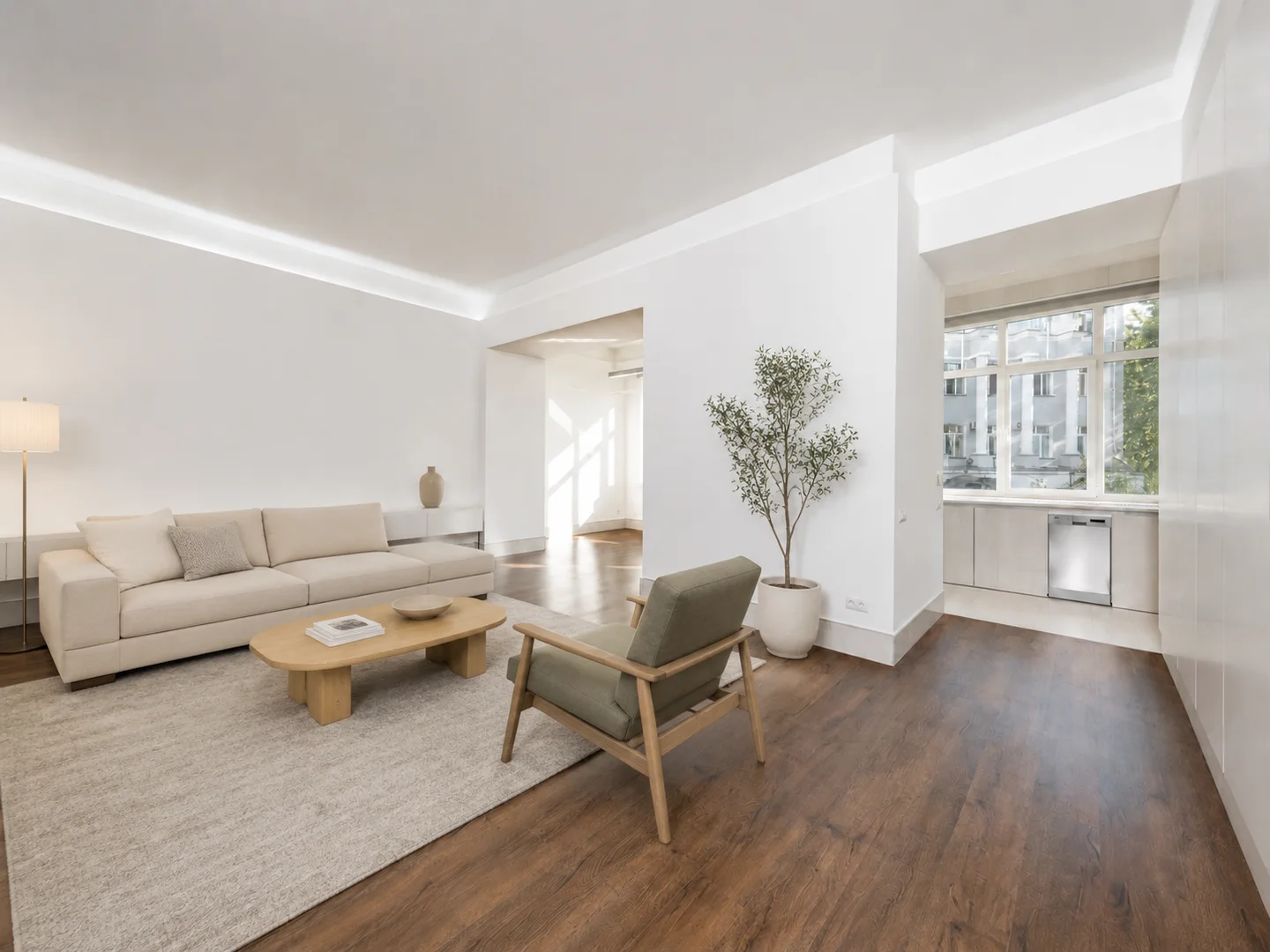
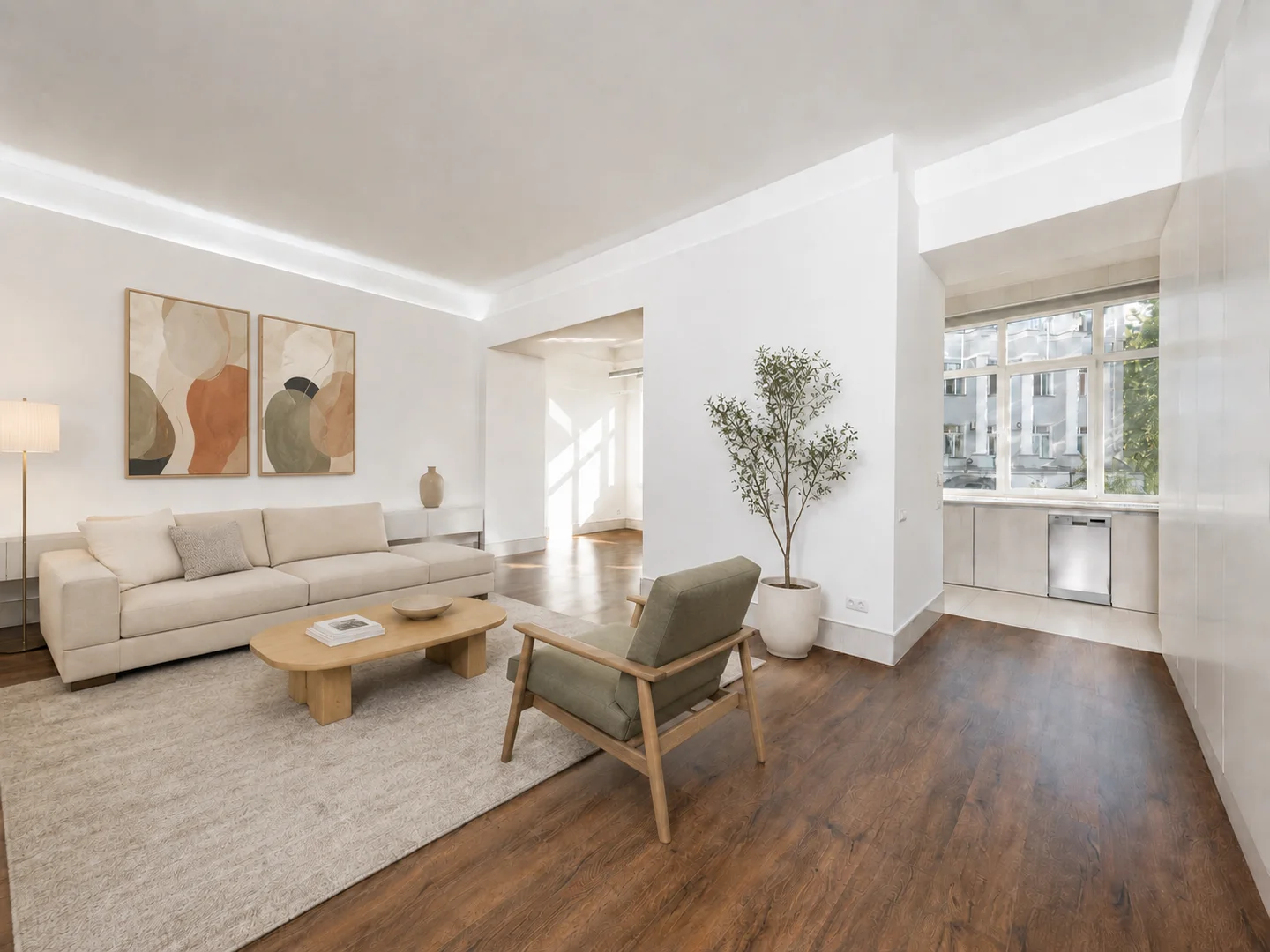
Change what appears in your image with a simple text prompt. Replace the background, switch outfits, hairstyles, furniture, products, or other objects, add accessories and new scene details, or remove unwanted people and clutter. Try OC Maker’s image-to-image AI rebuilds the edited areas to fit the surrounding colors, lighting, perspective, and overall scene.
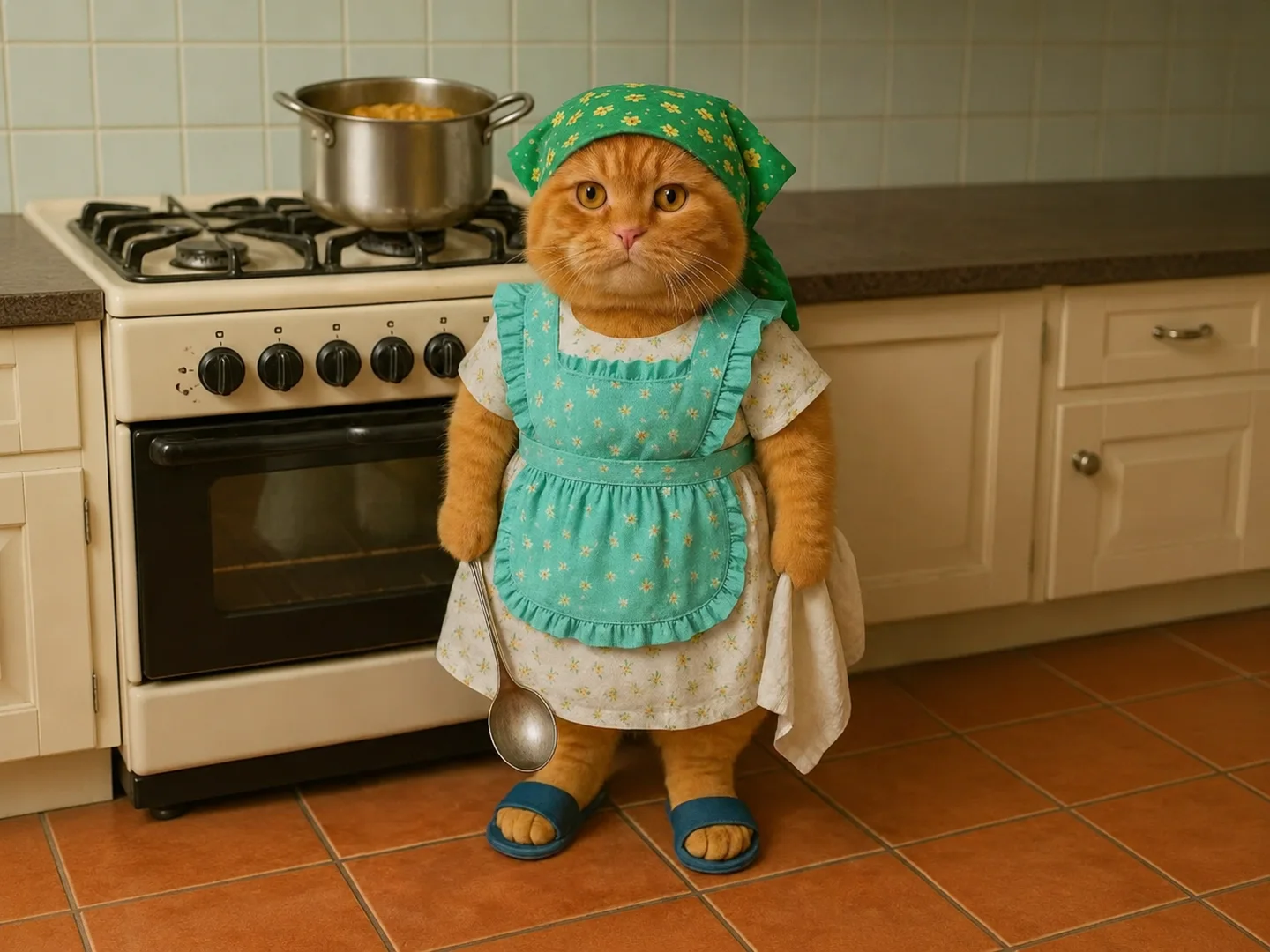
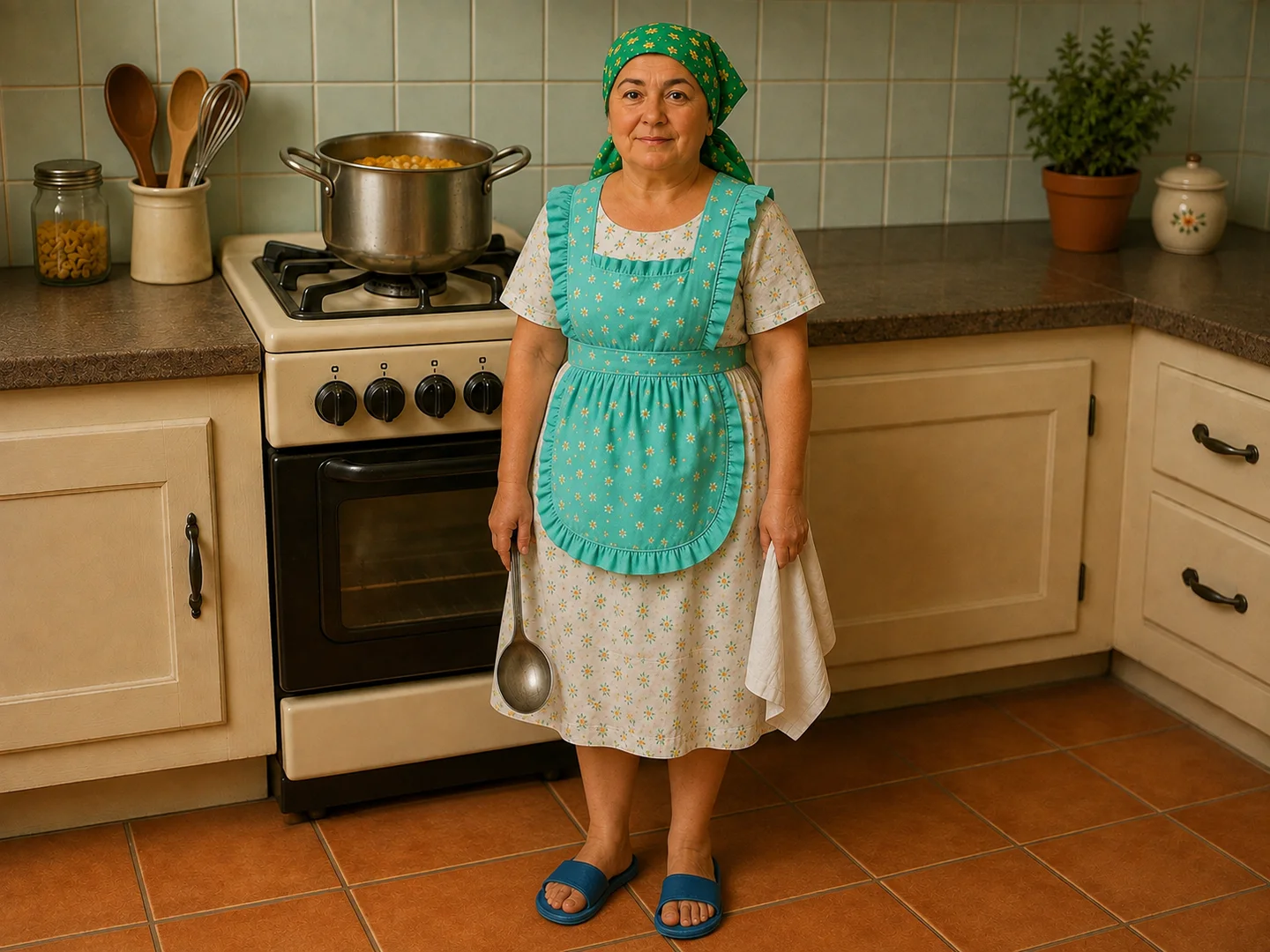 Reference
Use multiple reference images to bring different visual ideas into one result. One image can guide the character, another the outfit, and others the pose, background, or art style. The image-to-image AI combines these references with your prompt, making it easier to create an image that draws on several sources at once.
 After
After 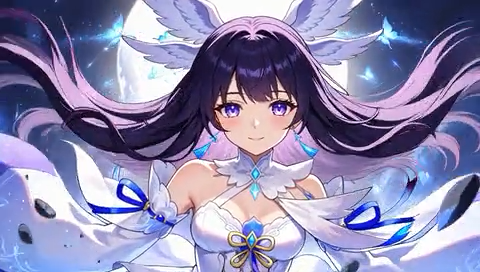 Before
Extend an image beyond its original edges without stretching or cutting off important content. Turn a square or portrait image into a wider composition, complete a cropped subject, move the main subject within the frame, or add extra space for a headline. Choose a suitable aspect ratio for avatars, posters, social posts, blog images, video thumbnails, and banners.
Reimagine a photo or illustration in a completely new style. Upload your image and see it as realistic art, anime, watercolor, a 3D cartoon, an oil painting, line art, and more. Try OC Maker’s image-to-image AI shows what makes each art style unique.
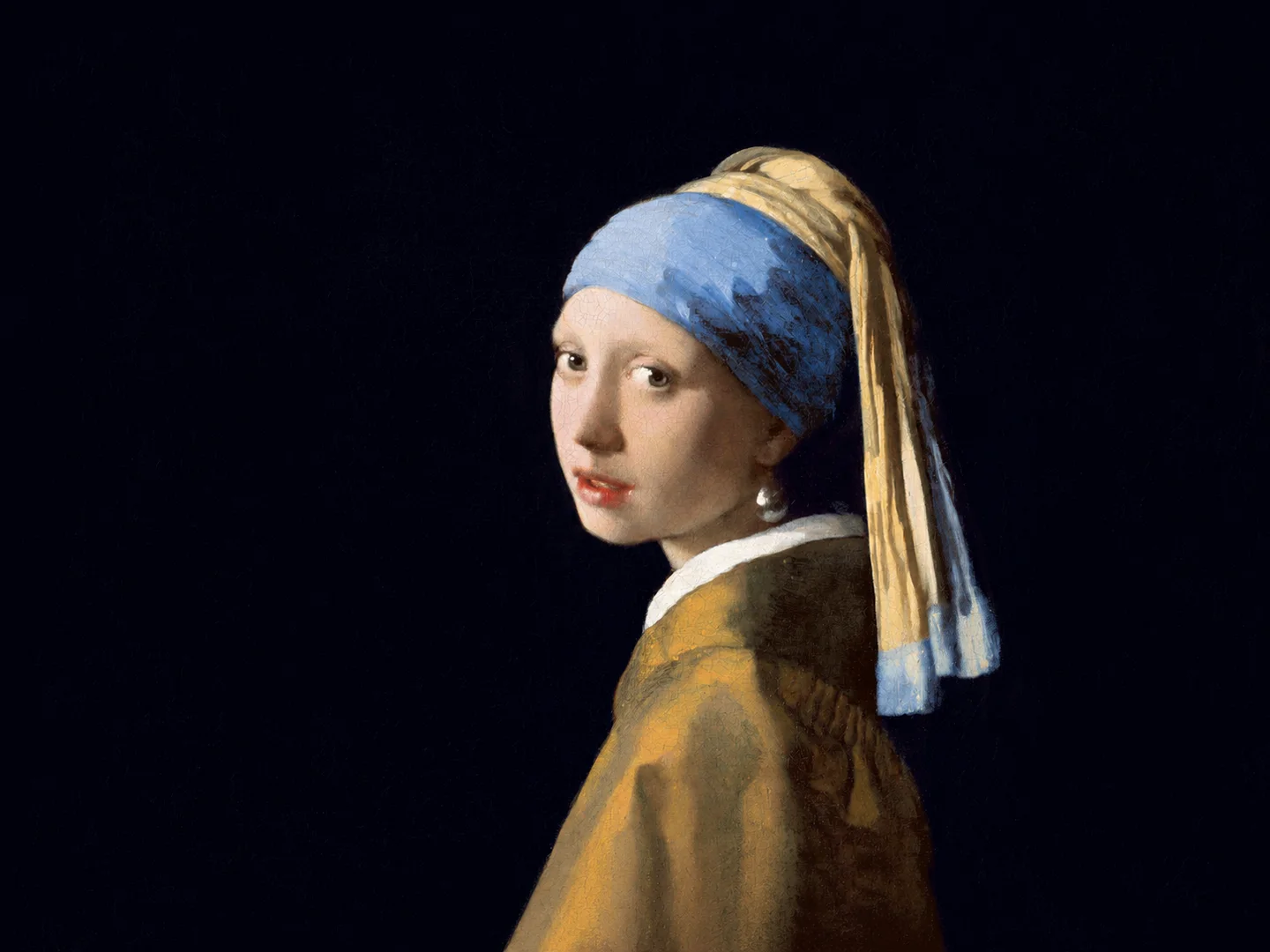
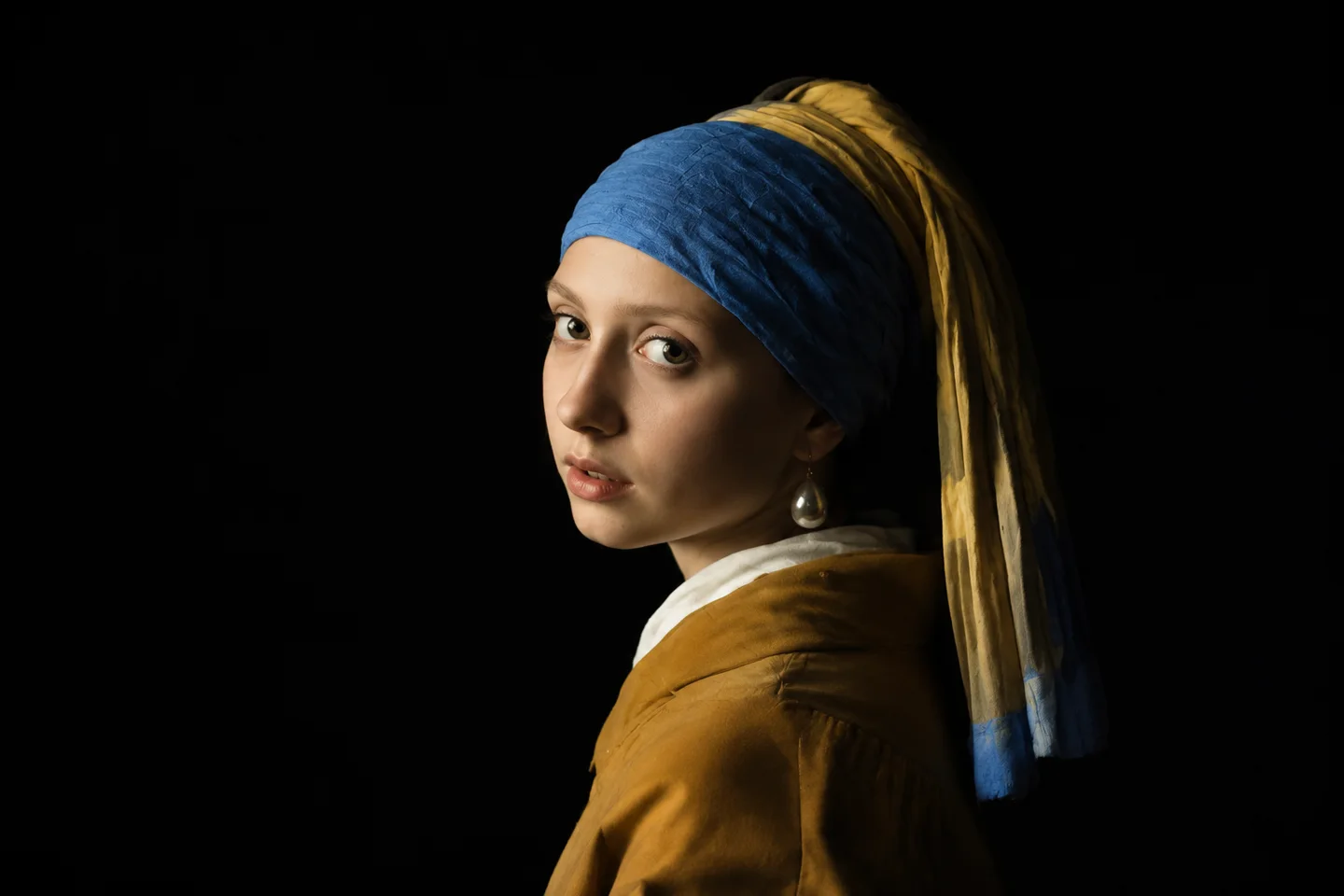
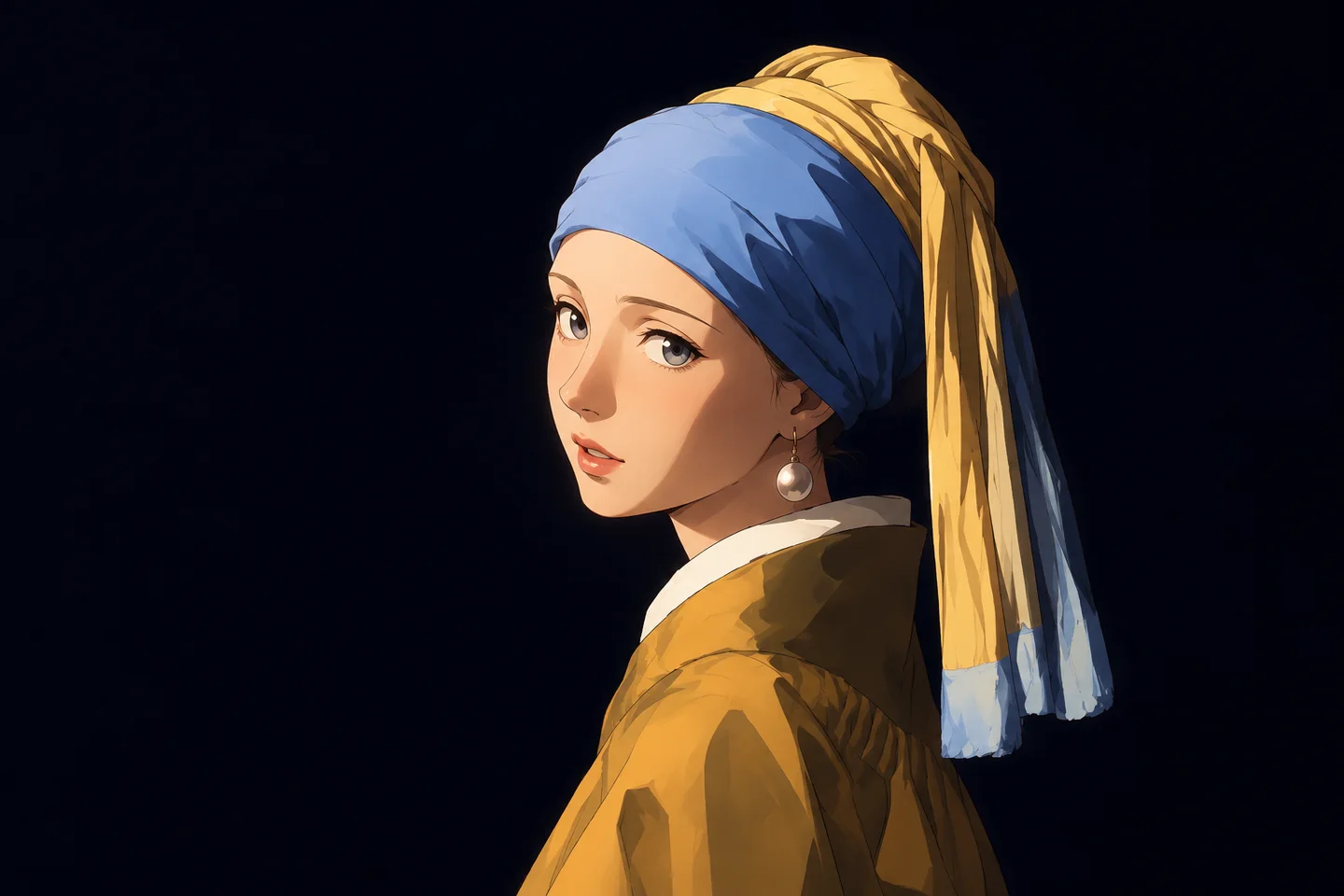
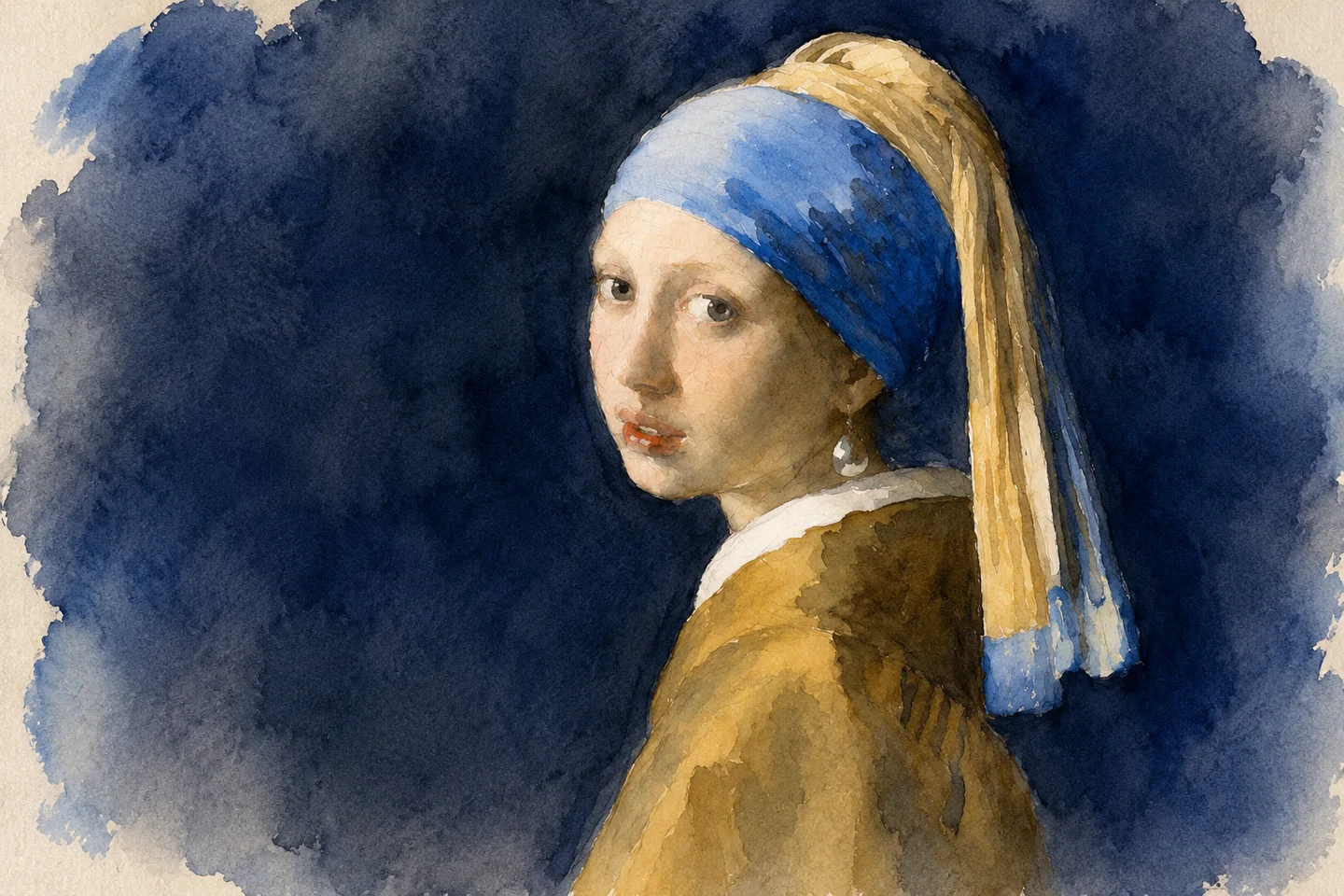
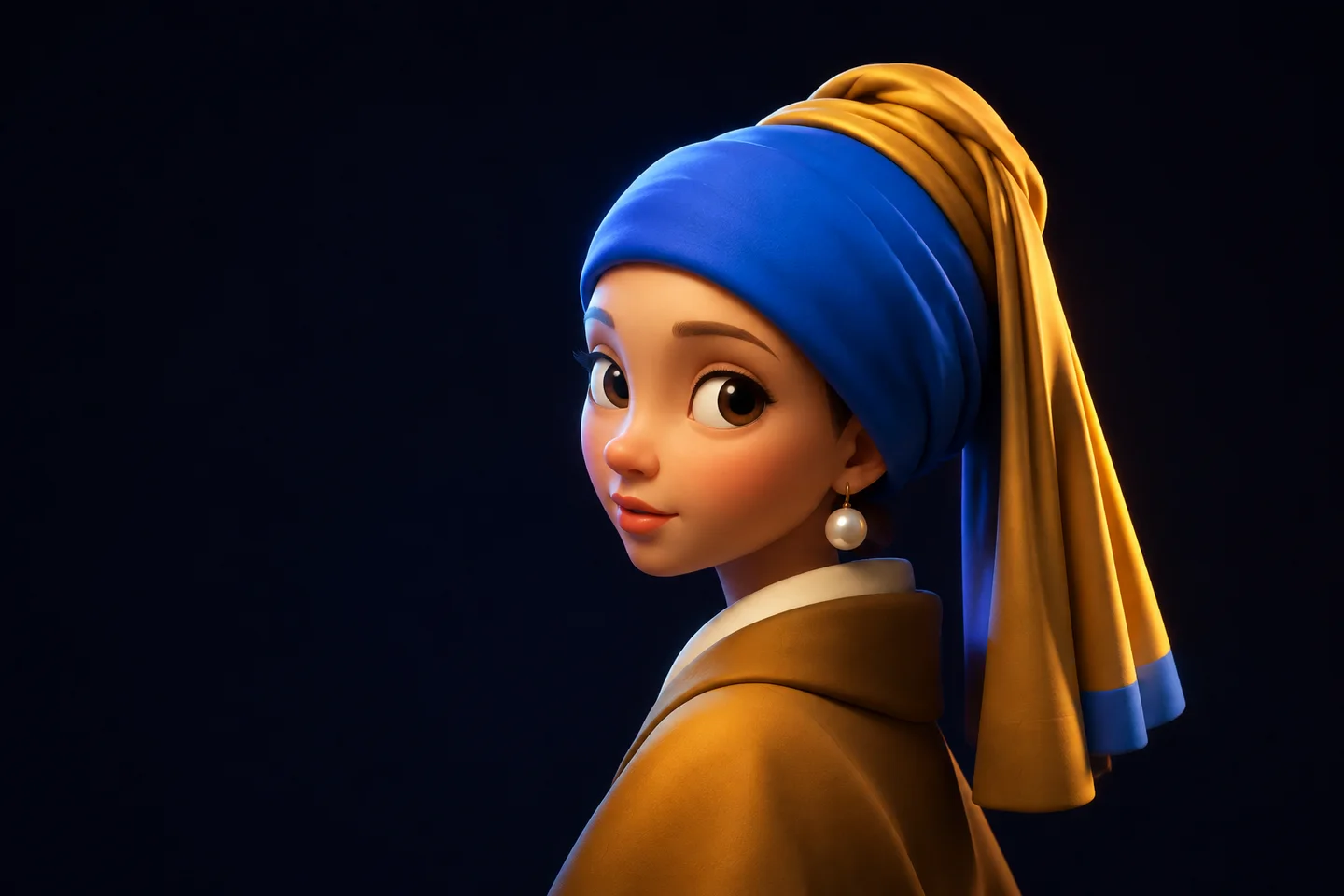
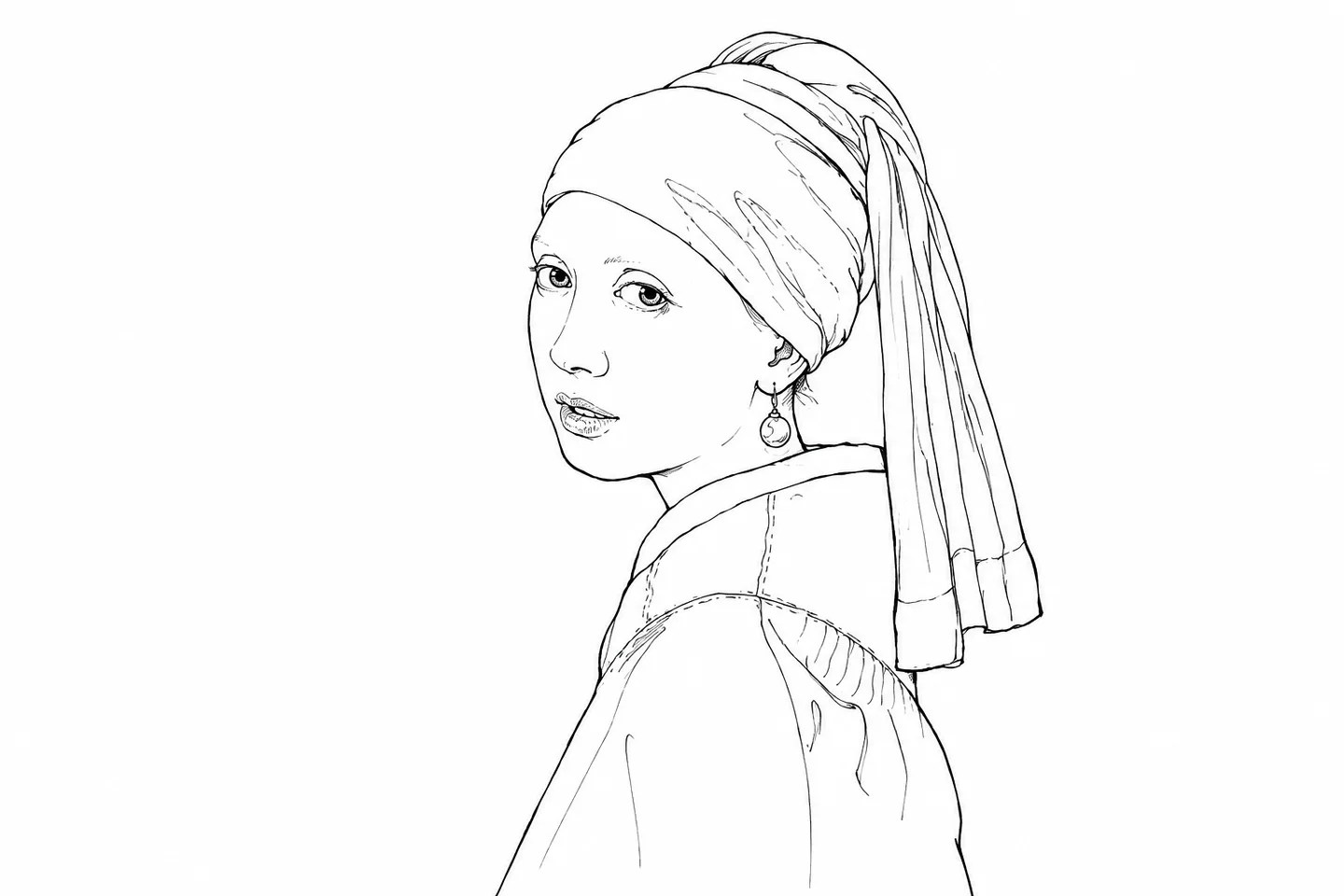
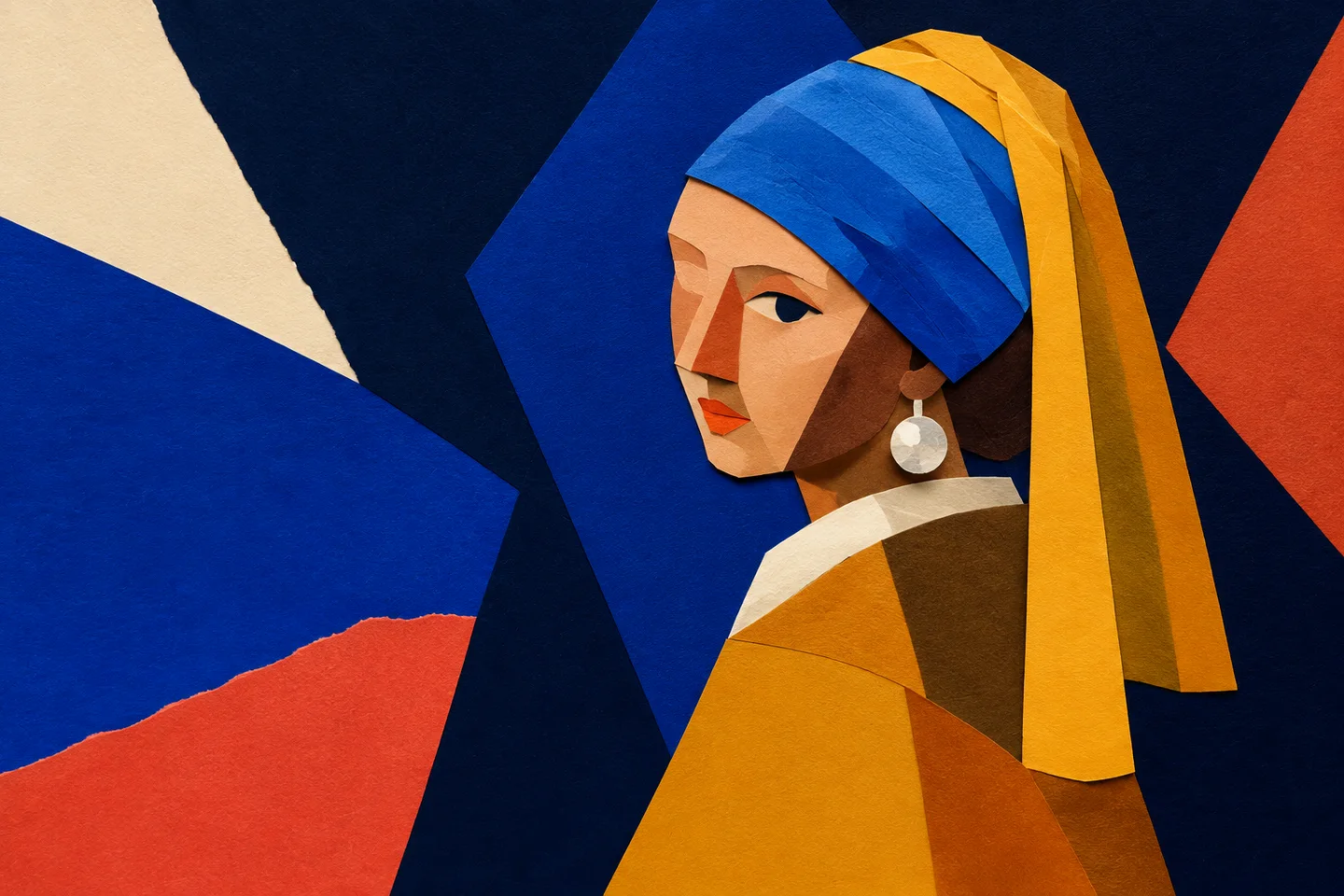
Upload a photo, illustration, sketch, or other image you want to transform.
Describe what you want to change, such as the style, clothing, background, colors, lighting, or pose. You can also specify which details should remain unchanged.
Choose an AI model, aspect ratio, and image size, then click “Generate.” Once your image is ready, adjust the prompt or settings to create another version.
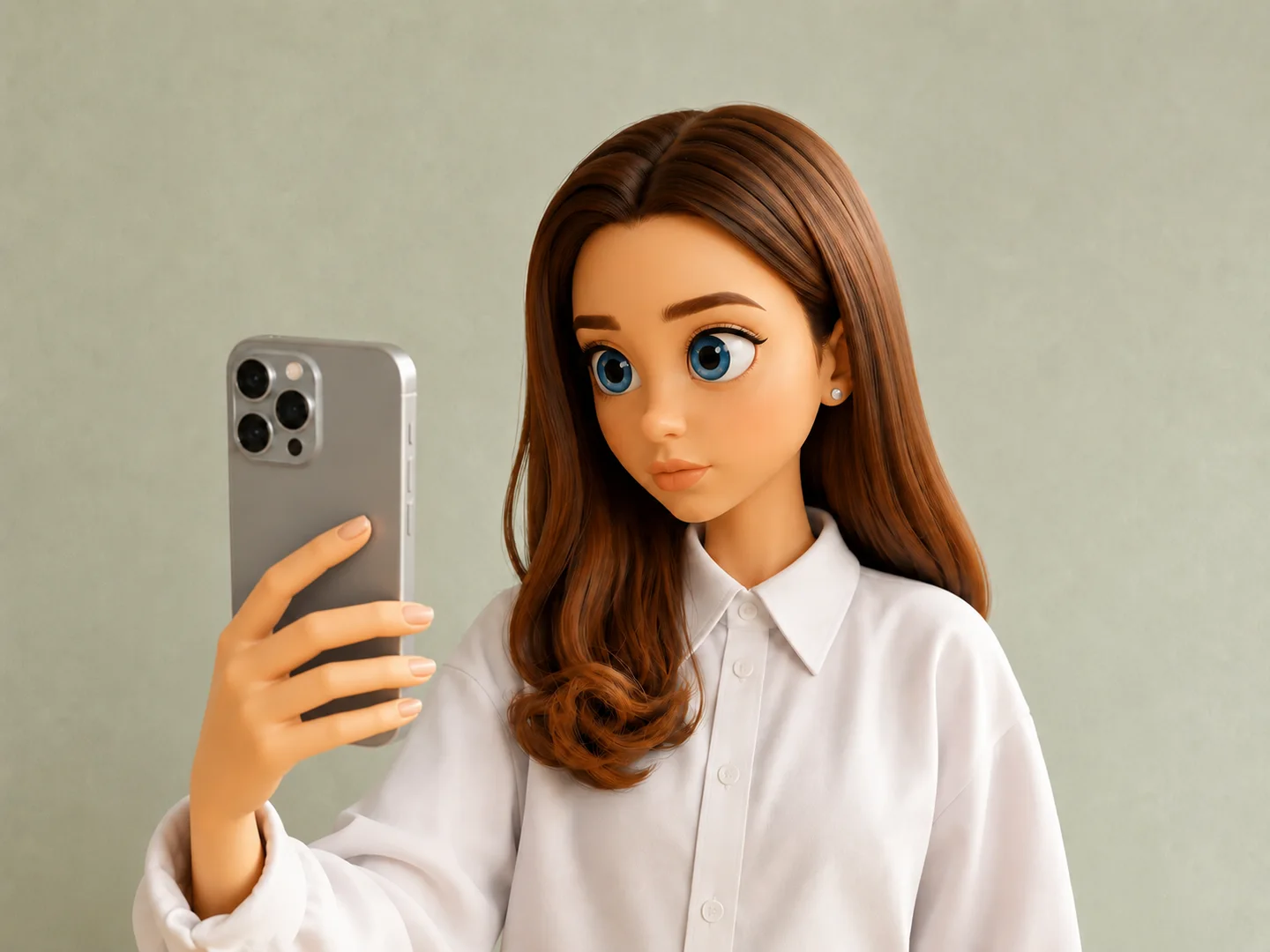
Upload a selfie and turn it into a professional headshot, creative avatar, or stylized portrait. Change the outfit, background, lighting, or visual style while keeping the person recognizable.
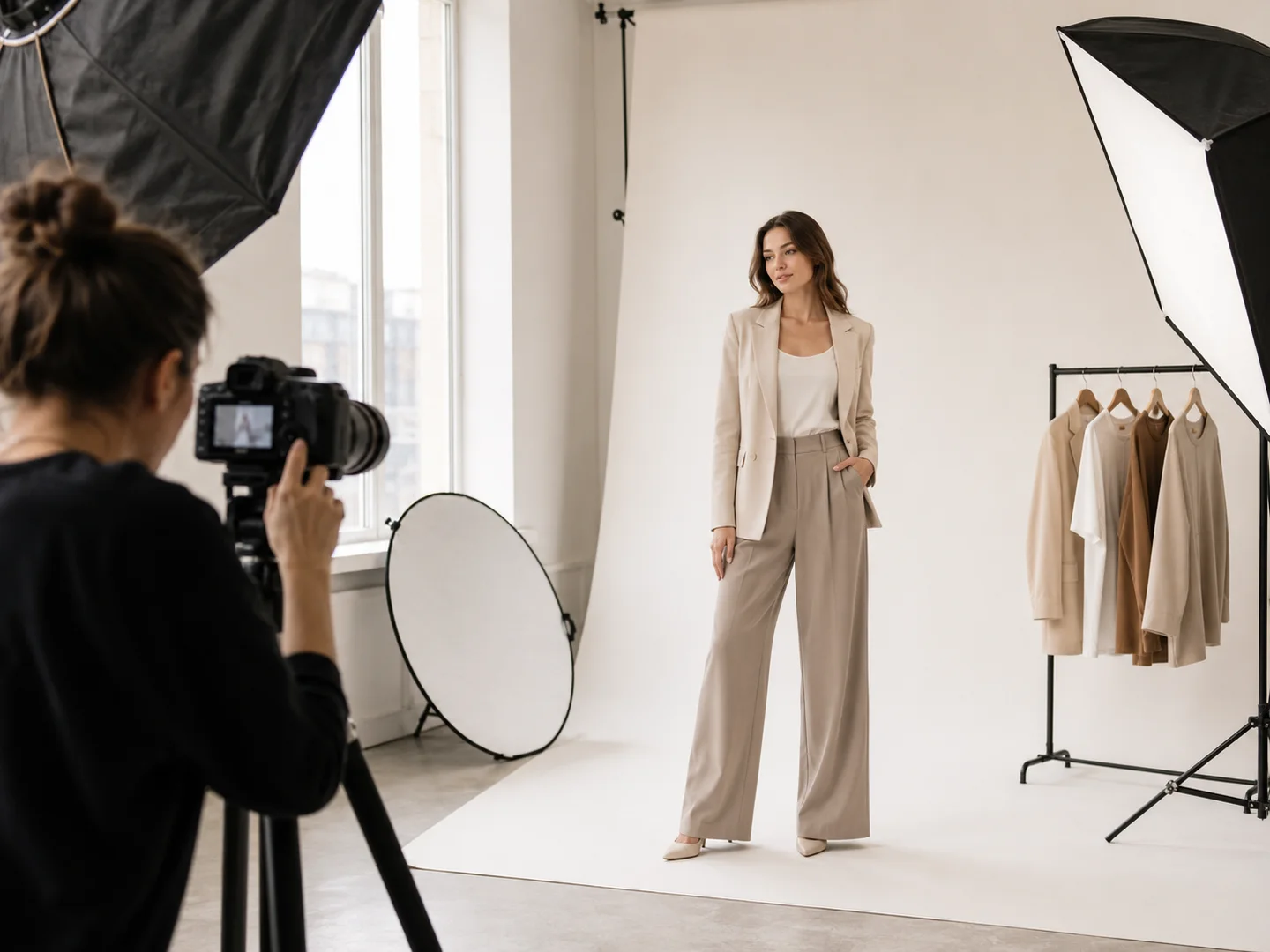
Upload your photo and a clothing reference to see yourself in a different outfit. Compare colors, styles, and complete looks before deciding what to wear or buy.
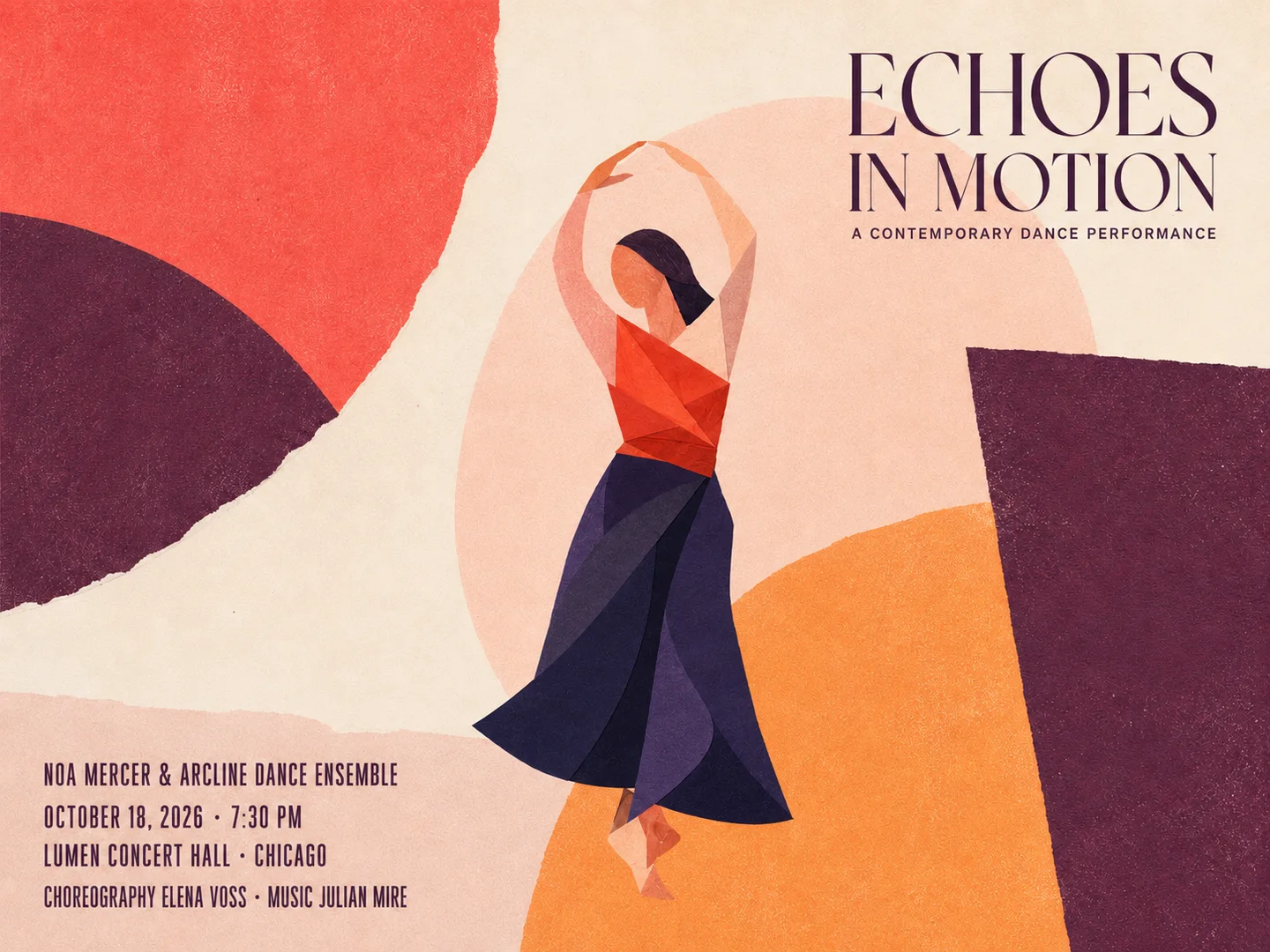
Transform an ordinary portrait or product photo into a poster-ready visual. Change the background, colors, lighting, and overall mood to create artwork for events, ads, covers, or social media.
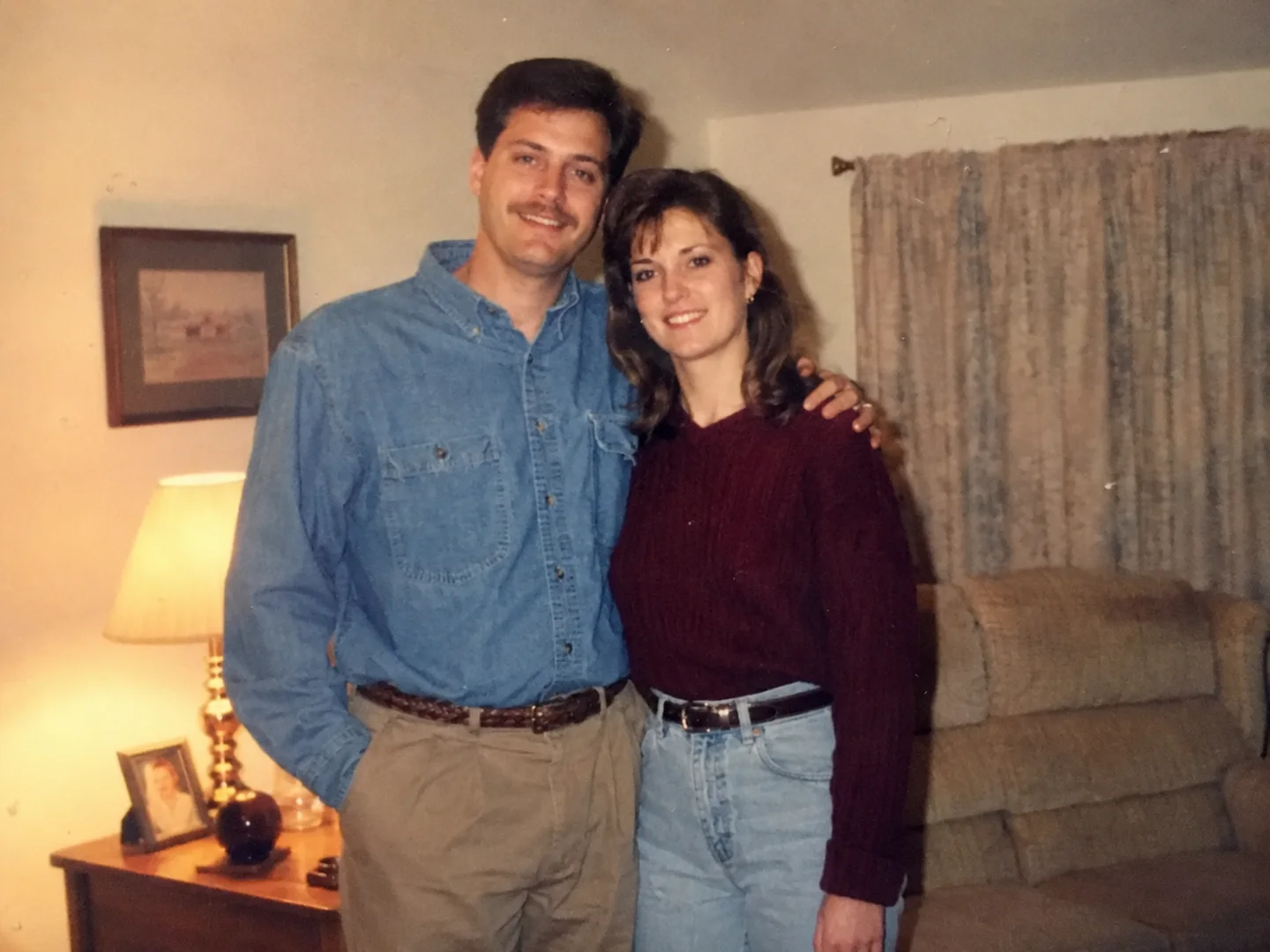
Repair faded, scratched, blurry, or low-quality photos without complex editing. Image-to-image AI can restore colors, remove visible damage, sharpen details, and create a cleaner version of the original image.
Upload a room photo and explore new furniture, colors, materials, and interior styles. Preview different design ideas using the existing space as a reference before redecorating or renovating.
Image-to-image AI is a tool that turns an existing image into a new version. Upload a photo, illustration, sketch, or other reference image, then tell the AI what you want to change. You can try a new art style, replace the background, change an outfit or pose, adjust the colors and lighting, and more.
Image-to-image AI uses your uploaded image as a visual guide. When you enter a prompt, the AI looks at the subject, composition, colors, and style, then creates a new image based on your instructions. Since it generates the image again instead of applying a simple filter, some details may look slightly different each time.
Start by uploading a clear reference image. In the prompt, describe what you want to keep and what you want to change—for example, “Keep the person’s face and pose, but change the outfit and background.” Choose an AI model, aspect ratio, and resolution, then generate your image. If the result is not quite right, adjust your prompt or try a different model.
Use a clear, high-quality reference image where the face or main subject is easy to see. Tell the AI exactly what to keep, such as the facial features, hairstyle, body shape, or pose. Changing one element at a time can also help the subject stay more consistent. Small differences may still appear because the AI creates a new image rather than editing individual pixels.
Yes, some AI models on Try OC Maker let you upload multiple reference images. You can use one image for the subject, another for the outfit, and another for the style or background. Make sure your prompt explains what the AI should take from each image. The number of images you can upload depends on the model and is shown in the upload area.
Yes, Try OC Maker’s image-to-image AI is free to try. New users receive 40 free credits after signing up. Once you use those credits, you can purchase more to continue generating images.
Always start with the original high-resolution image when possible. Avoid using the same generated image as a reference again and again, as small flaws can build up with each new version. Choosing an aspect ratio close to the original and a higher output resolution can also help keep the image clear and detailed.
You can upload JPG, JPEG, PNG, WebP, and GIF images to Try OC Maker. File size limits and other upload requirements may vary by model, so check the details shown in the upload area.
Yes. Under Try OC Maker’s current Terms of Service, you can use the images you create for lawful personal or commercial projects. You are still responsible for making sure your images do not infringe copyrights, trademarks, privacy rights, or other third-party rights.
Give any image a fresh new look with Try OC Maker’s image-to-image generator. Powered by advanced AI models, it transforms your images based on simple text prompts.