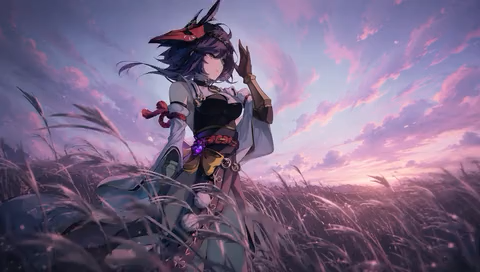
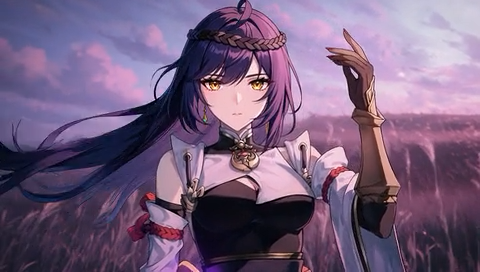
Animate your photos with our image to video AI generator, the easiest way to turn still images into moving clips. This online AI image to video tool adds natural motion while keeping the look of your original image. Create shareable videos for social media, business promotion, and creative projects in minutes without any editing skills required.
Generated Results
Your latest creations, grouped by local date.
Sign in to view your animation history.
Convert Images to Videos with AI
With our image-to-video AI generator, you can easily turn still photos and illustrations into moving videos without filming or editing frame by frame. This AI image-to-video tool follows your prompt to add character actions, movement in the scene, and camera motion.
Bring Your Images to Life with Try OC Maker’s Image to Video AI
Turn images into eye-catching clips with our image to video AI. Describe the motion you want—subtle gestures, camera pans, or slow zooms—and bring your pictures to life effortlessly.
Reference
Animate Images Using Multiple AI Video Models
There are many ways to animate an image, and Try OC Maker’s AI image to video generator offers different models for different kinds of scenes. For example, Kling 3.0 supports dialogue and multi-shot videos, Seedance 2.0 accepts image and audio references, and Veo 3.1 is suited to realistic scenes. Simply upload your starting image and try the same motion prompt with different models—then compare how each handles movement, camera work, faces, and clothing.
Reference
Make Multilingual Lip-Sync Talking Videos from Images
Our image to video AI tool also supports speech to bring character portraits to life. You can easily create a talking video with spoken dialogue and mouth movements that follow the words. For multilingual scenes, you can choose Kling 3.0 to write dialogue in English, Chinese, Japanese, Korean, or Spanish and assign each line to the right character.
Reference
Create a Video from First and Last Frames
Want to decide how your video begins and ends? Just upload a starting image and set a final frame—our image to video AI generator will create the movement between them.
Some AI models also support multiple image references, allowing you to use 1–8 images of your character, location, outfit, or props to guide the visual details throughout the video.
Reference
Turn a Written Scene into a Multi-Shot Video
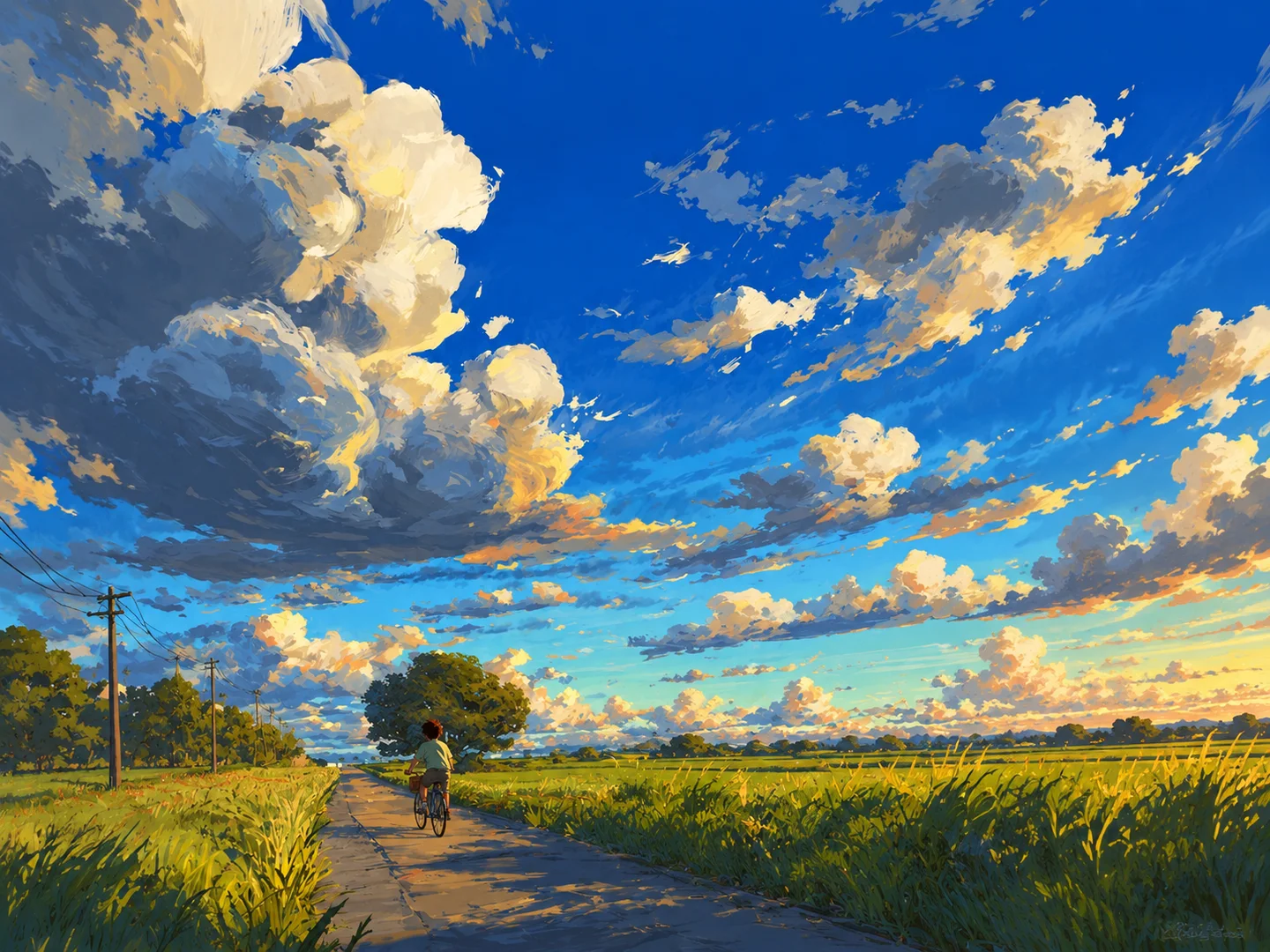
A written scene can also be turned into a sequence of shots. You can describe actions in order, including a cyclist approaching, turning a corner, and stopping outside a shop, and specify how the camera should follow him. With a multi-shot model, our AI image to video generator can plan the framing and camera angles as the action unfolds, creating a video with changing perspectives and natural transitions.
Image to Video Prompt Tips
A clear, well-structured prompt can significantly improve the quality and style of your
image-to-video result. Give Try OC Maker enough detail to understand the intended
motion, scene, camera direction, and storytelling.
Follow these tips when writing your prompt:
Be clear about the motion direction
Describe exactly how the image should move instead of relying on vague terms. Prompts such as “slow cinematic zoom-in” or “gentle camera pan left” help the AI create more natural motion.
Add scene and environment details
Include background, lighting, weather, or atmospheric details such as “sunset city skyline” or “rainy night street” to keep the visual direction cohesive.
Define the video style
Specify a clear visual style—cinematic, realistic, dreamy, anime, cartoon, or social media—to guide the overall look and feel of the generated video.
Include subject behavior or actions
If the image contains people, characters, or objects, explain what they should do and how the camera should respond, such as “a person walks forward while the camera follows.”
Combine motion with emotional tone
Add mood words such as “peaceful,” “dramatic,” or “energetic” so the movement, pacing, and atmosphere support the emotion you want the video to express.
Why Pick Try OC Maker’s Image to Video AI Generator?
Smooth, Natural Motion
No frame-by-frame animation needed. Just upload a photo, illustration, or OC image and describe how it should move. Our tool turns it into a short video with natural-looking motion.
Multiple AI Models
Explore different AI video models and choose the one that fits your idea, whether you’re animating a character or creating a cinematic scene.
Sound That Fits the Scene
Turn on sound with a model that supports audio, and generate a video where the sound matches the action.
Easy to Use
Upload an image, write a short motion prompt, and generate your video. No video editing skills required.
Create on Any Device
Make videos from your images in a desktop or mobile browser. There’s no animation software to install.
Privacy & Security
We use access controls and encryption to help protect the images you upload and the videos you create.
How to Use Image to Video AI Generator?
01
Upload Your Image
Open our image to video generator and upload the image you want to animate.
02
Generate Video with AI
You can describe the motion and choose a model to generate your AI video automatically.
03
Save Your Video
Preview the AI-generated video and save it to your device in one click.
What You Can Do with Our Image-to-Video AI?
Anime Animation
Turn anime illustrations into animated scenes with character movement and cinematic camera shots—perfect for fan edits or bringing your own anime stories to life.
Travel Videos
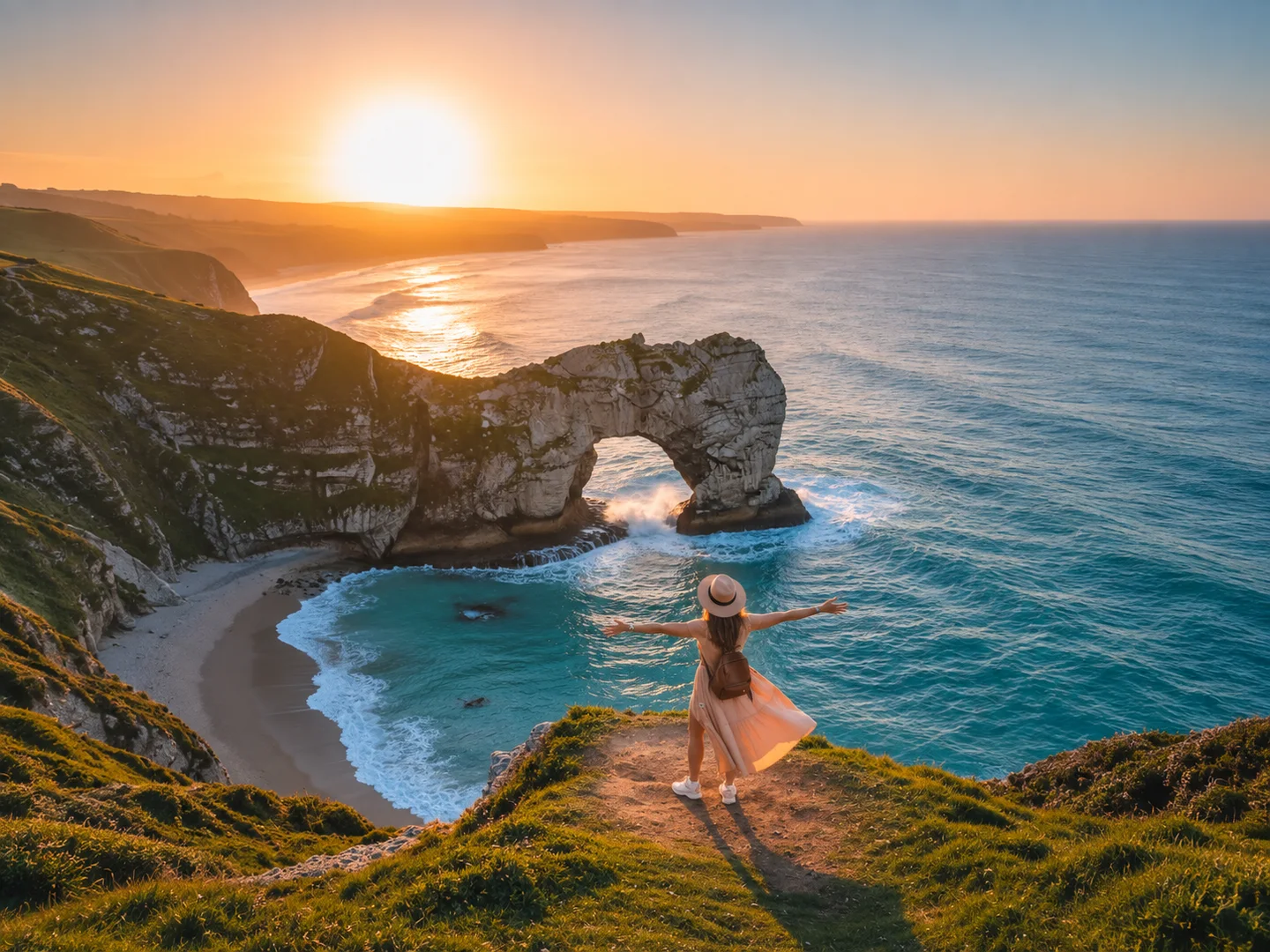
Turn travel photos into short videos with moving waves, drifting clouds, or lively streets—perfect for sharing trip highlights on social media.
Social Media Clips
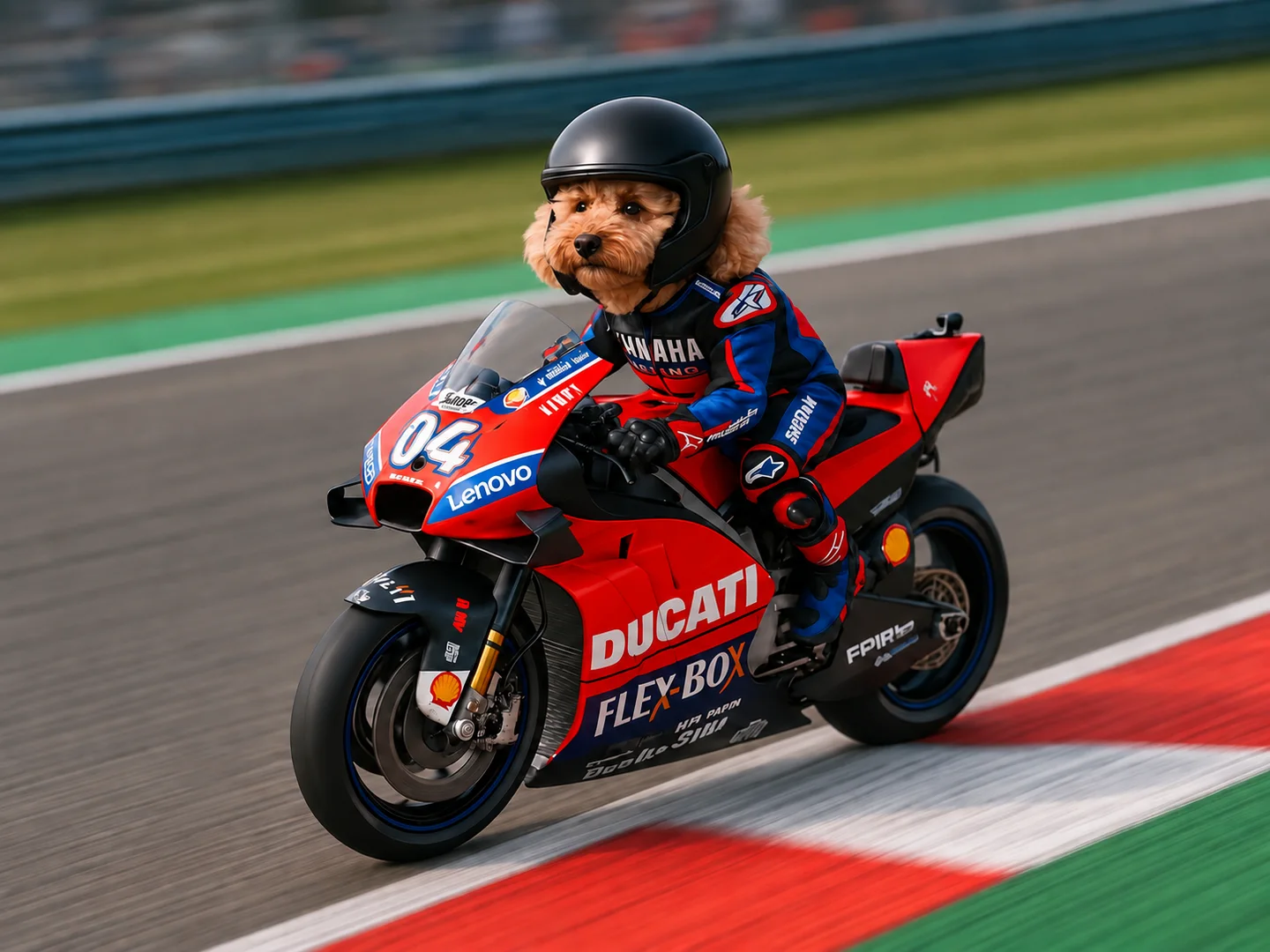
Turn selfies, travel photos, or AI images into short videos to share on TikTok, Instagram Reels, and YouTube Shorts.
Product Ads
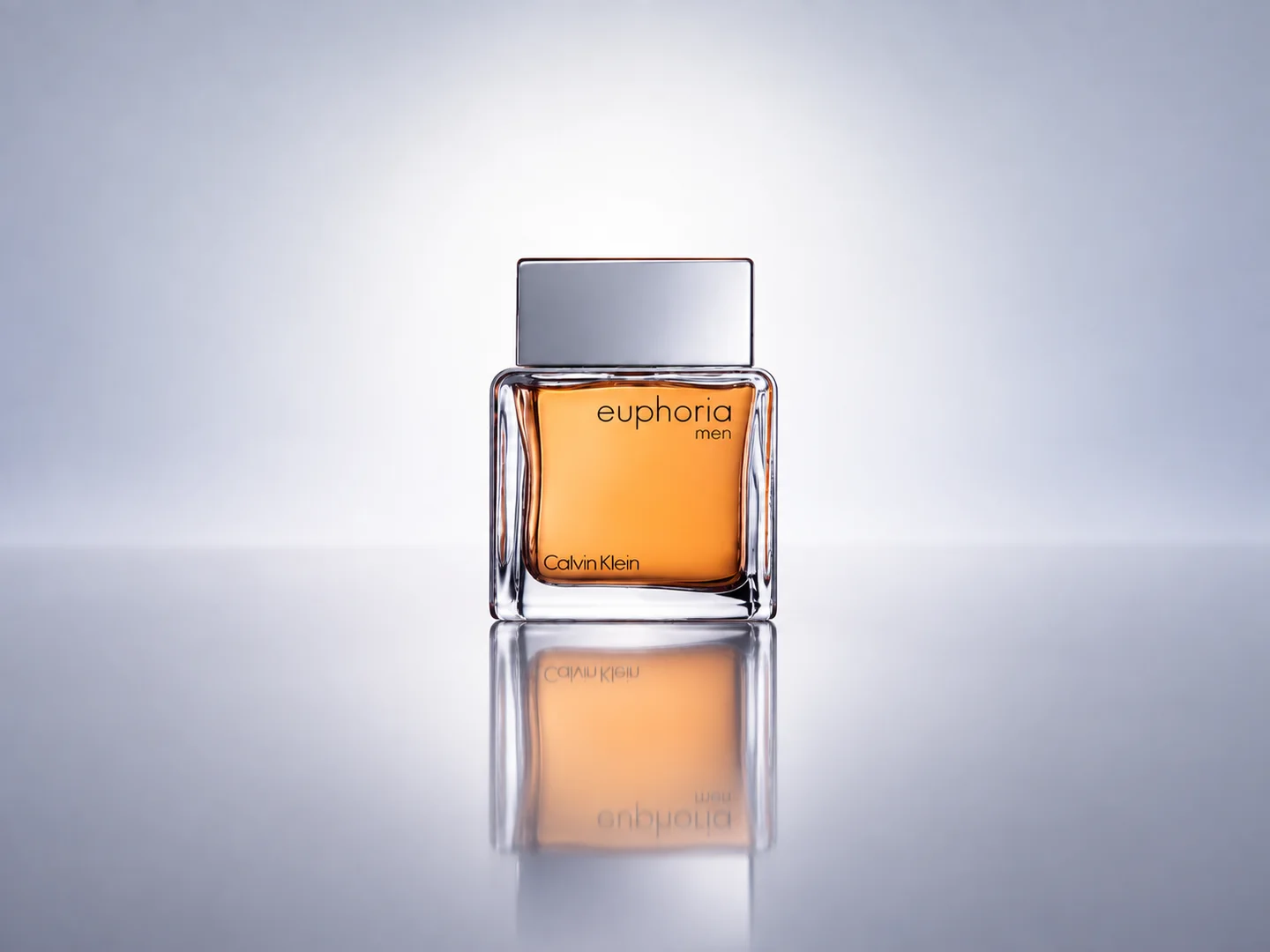
Turn product photos into dynamic videos that show your products in action or set the scene for a launch, promotion, or social media ad.
Memory Videos
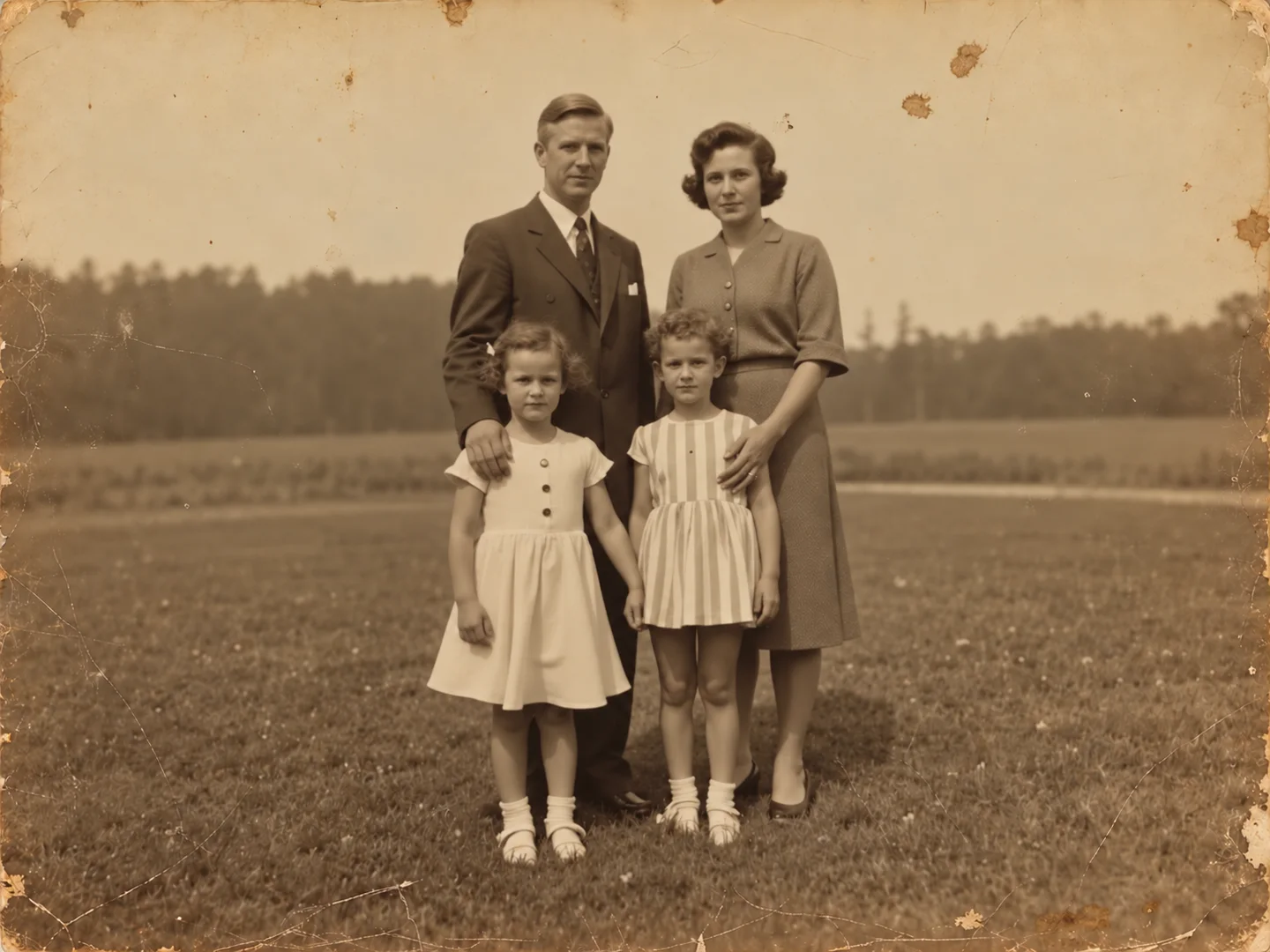
Bring old family photos and favorite moments to life by animating them into short videos—perfect for birthdays, family celebrations, or keepsakes.
Short Films
Turn storyboards or scene illustrations into cinematic clips you can edit together for a short film, story trailer, or creative project.
Discover even more features.
Image to Video FAQs
What is Try OC Maker’s AI image to video generator?
It turns a still image into a short video. Upload a photo or OC illustration, describe what you want to happen, and choose a video model. You can make a character smile, bring a scene to life, or create a short clip from artwork you already have.
How does Try OC Maker’s image to video AI work?
Your image sets the starting scene: the subject, framing, colors, and style. Your prompt tells the AI what should move. You don’t need to describe everything in the picture again. Try something direct, like “She looks up and smiles while the camera slowly moves closer.” If you want the background to move too, mention that in the prompt.
How do I convert an image to a video using AI?
Upload an image and write a short prompt describing the movement you want. Then choose a model and any available settings, such as video length, resolution, or sound. Check the credit cost, select Generate, and preview your clip before downloading it. If the result doesn’t look right, try describing one main action more clearly.
What AI models are available for image to video generation?
Try OC Maker offers Seedance, Kling, Veo, Wan, and other video models. The best choice depends on what you want to make. For example, a talking character needs a model with audio support, while a shot with a planned ending needs first and last frame controls. Open the model selector to see which options and settings are currently available.
Can I animate my own OC image?
Yes. Upload your OC artwork and tell the AI what your character should do, whether that’s blinking, turning around, waving, or walking into a scene. A clear image helps the model pick up details such as the character’s face, hair, outfit, and accessories. Start with a simple movement if you want to see how well it keeps your design.
Can I control my video’s first and last frames?
Yes, with models that support first and last frame control. Set one image for how the shot begins and another for how it ends, then describe the action between them. For example, you could start with your OC facing away and end with them looking at the camera. Check the selected model’s controls to see whether this option is available.
Can I add sound to an image-to-video clip?
Some models can generate sound along with the video. If sound is available, describe what you want to hear, such as rain, footsteps, or a line of dialogue. For a talking scene with more than one character, say who speaks each line. Preview the finished clip to check that the sound and movement fit together.
Is Try OC Maker’s image to video generator free to use?
You can start with free credits. Each video costs credits, and the amount varies with the model and settings you choose. You’ll see the cost before you generate, so you can check it while trying different options.
Turn Any Image into AI Video Magic with Try OC Maker
Turn your images into stunning AI-generated videos with ease. Our image to video AI generator delivers fast, high-quality, and professional results. Try it Now!

/w1440.webp) Reference
Reference/w1440.webp)
/w1440.webp)
/w1440.webp)
/w1440.webp)
/w1440.webp)
/w1440.webp)
/w1440.webp)
/w1440.webp)
/w1440.webp)